
WordPress is a powerful and user-friendly content management system, but like any software, it’s not immune to errors. One common issue that WordPress users encounter is the “The response is not a valid JSON response” error. This error typically arises when trying to publish or update a post or page, and it can be quite frustrating. However, with a bit of troubleshooting, you can resolve it. This blog post will guide you through the steps to fix the invalid JSON response error in WordPress.
Understanding The response is not a valid JSON response
Before diving into the solutions, it’s helpful to understand what this error means. JSON (JavaScript Object Notation) is a lightweight data-interchange format that WordPress uses to communicate between the server and the client (your web browser). When you perform certain actions in the WordPress editor, such as saving or publishing a post, WordPress sends a JSON request to the server and expects a valid JSON response.
If the response from the server is not in the correct JSON format, WordPress throws the “The response is Invalid JSON Response Error” error. This can be caused by a variety of issues, including server configuration problems, plugin conflicts, or issues with your .htaccess file.

Causes of The response is not a valid JSON response
The “The response is not a valid JSON response” error in WordPress can be caused by a variety of factors. Understanding these causes is crucial for troubleshooting and resolving the issue effectively. Below are some common causes of this error:

Permalink Issues
Permalinks control how URLs are structured in WordPress. If the .htaccess file, which handles these permalinks, is misconfigured, it can cause the JSON response error. This is often due to missing or incorrect rewrite rules. Resetting permalinks through the WordPress dashboard can refresh these settings and resolve related issues.
REST API Issues
The REST API enables WordPress to communicate with other applications. If the REST API is blocked, such as by security plugins or server configurations, WordPress cannot send or receive data correctly, resulting in JSON errors. Checking the Site Health tool in WordPress can provide insights into REST API issues.
Plugin Conflicts
Plugins can conflict with each other or with WordPress core functionalities. For example, a security plugin might block REST API requests, or a plugin might alter the JSON responses. Deactivating all plugins and then reactivating them one by one can help identify the conflicting plugin.
Theme Conflicts
Themes control the appearance and some functionality of your WordPress site. A poorly coded theme can interfere with the REST API or JSON responses. Switching to a default WordPress theme (like Twenty Twenty-One) can help determine if the theme is causing the issue.
Server Configuration Issues
Server configurations, such as the Apache or Nginx settings, PHP settings, and .htaccess rules, are critical for WordPress functionality. Incorrect settings can block REST API requests or cause other issues. Ensuring the correct .htaccess rules are in place, enabling necessary PHP modules, and increasing PHP memory limits can help.
CORS Issues
CORS issues occur when your server does not allow requests from different origins, which can block REST API communication. Adding appropriate CORS headers in the .htaccess file can resolve this.

SSL and Mixed Content Issues
Mixed content issues arise when both HTTP and HTTPS resources are loaded on the same page, which can disrupt communication and cause JSON errors. Ensuring all resources are loaded over HTTPS and correctly configuring SSL can help resolve this.
Incorrect Site URL Settings
Mismatched site URL and WordPress URL settings can cause communication issues within WordPress, leading to JSON errors. Ensuring these settings match in the General Settings page of your WordPress dashboard can resolve this.
Web Application Firewall (WAF)
Some hosting providers offer web application firewalls that can block REST API requests, leading to JSON errors. Configuring the firewall to allow these requests or contacting your hosting provider for support can help.
Large Post Content or Metadata
Saving posts with a large amount of content or metadata can exceed server limits, causing JSON errors. Increasing PHP memory limits, execution time, and post size limits can resolve this issue.
Custom Code or Modifications
Custom code added to your theme’s functions.php file or custom plugins can interfere with standard WordPress functionality. Reviewing and disabling custom code can help identify and resolve the issue.
Step-by-Step Solutions to Fix The response is not a valid JSON response in WordPress
The “The response is not a valid JSON response” error in WordPress can be frustrating, but it’s typically solvable with some systematic troubleshooting. Below are detailed steps to identify and fix this error.

1. Check Your Permalinks
The first and simplest step is to reset your permalinks. Sometimes, permalink settings can become corrupted, causing various issues, including the invalid JSON response error.
- Go to your WordPress dashboard.
- Navigate to Settings > Permalinks.
- Without making any changes, click the Save Changes button.

This process refreshes your permalink settings and can often resolve the issue.
2. Ensure REST API Accessibility
WordPress relies on the REST API for various functionalities, including the block editor (Gutenberg). If the REST API is blocked, you might encounter the JSON response error.
- To check if the REST API is accessible, go to Tools > Site Health in your WordPress dashboard.
- Look for any critical issues related to the REST API.
If there are issues, follow the recommendations provided by the Site Health tool to resolve them.
3. Check for Plugin Conflicts
Plugins can sometimes interfere with the REST API, causing JSON response errors. To determine if a plugin is causing the issue, you can disable all plugins and then re-enable them one by one.
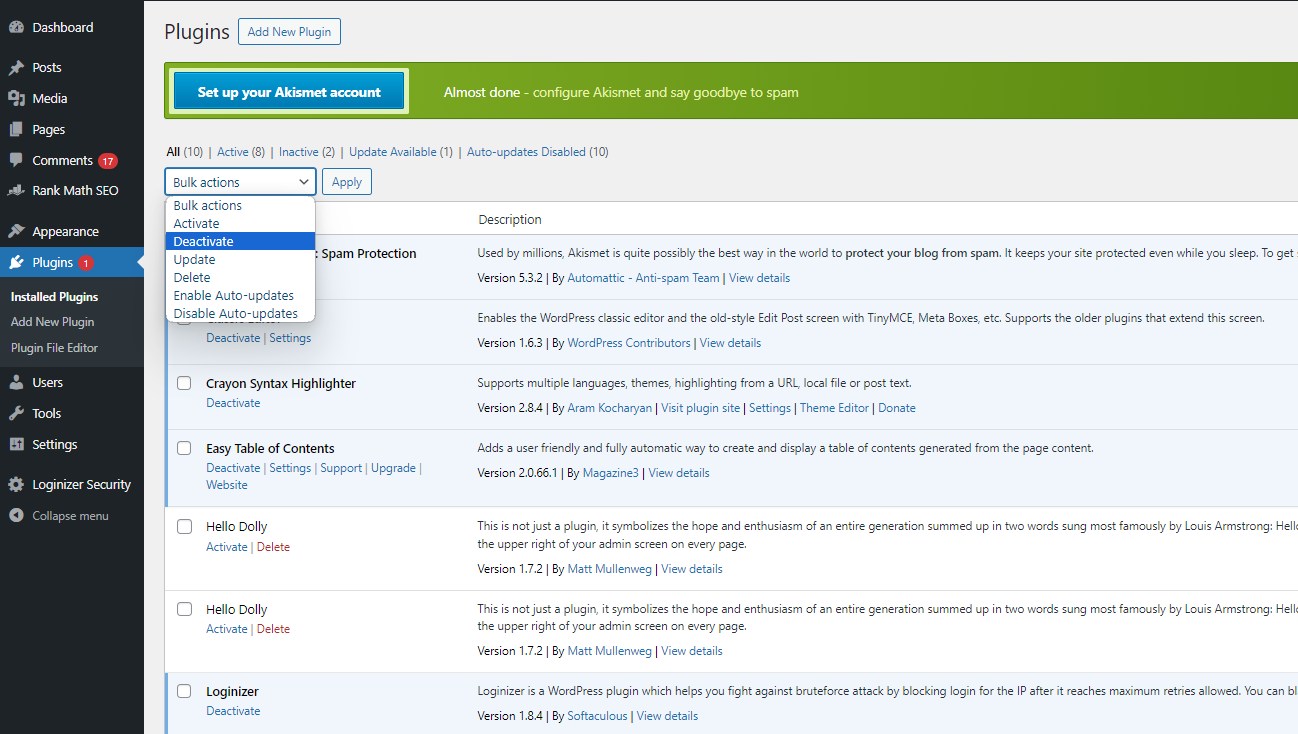
- Go to Plugins > Installed Plugins.
- Select all plugins and choose Deactivate from the Bulk Actions dropdown menu.
- Check if the error persists by trying to update or publish a post.
- If the error is resolved, re-enable your plugins one by one, checking each time to identify the culprit.
Once you identify the problematic plugin, you can contact the plugin developer for support or look for an alternative plugin.
4. Update WordPress, Themes, and Plugins
Ensure that your WordPress core, themes, and plugins are all up to date. Developers frequently release updates to fix bugs and improve compatibility.
- Go to Dashboard > Updates.
- Update WordPress to the latest version.
- Update all your themes and plugins.
5. Check .htaccess File
Your .htaccess file is a configuration file used by Apache servers to manage your website’s URLs. Corrupt or incorrect settings in this file can cause JSON response errors.
- Access your website’s root directory via FTP or your hosting provider’s file manager.
- Look for the
.htaccessfile and download a copy for backup. - Open the
.htaccessfile and ensure it contains the default WordPress rules:# BEGIN WordPres<IfModule mod_rewrite.c>RewriteEngine OnRewriteBase /RewriteRule ^index\.php$ - [L]RewriteCond %{REQUEST_FILENAME} !-fRewriteCond %{REQUEST_FILENAME} !-dRewriteRule . /index.php [L]</IfModule># END WordPress
- If the file is missing these rules, add them and save the file.
- If you’re unsure or if you see custom rules that you don’t understand, you might want to consult with your web host or a developer.
6. Address CORS Issues
Cross-Origin Resource Sharing (CORS) issues can also cause the invalid JSON response error. To fix this, you can modify your .htaccess file to allow cross-origin requests.
- Add the following lines to your .htaccess file:
<IfModule mod_headers.c>
Header set Access-Control-Allow-Origin "*"
</IfModule>
- Save the file and check if the error persists.
7. Check SSL Settings
If your site uses SSL (HTTPS), ensure that all requests are correctly routed through HTTPS. Misconfigured SSL settings can cause communication issues between the client and server.
- Force HTTPS by adding the following code to your .htaccess file:
<IfModule mod_rewrite.c>

RewriteEngine On

RewriteCond %{HTTPS} off

RewriteRule ^(.*)$ https://%{HTTP_HOST}%{REQUEST_URI} [L,R=301]

</IfModule>
- Save the file and test your site.
8. Increase PHP Memory Limit
Sometimes, “The response is not a valid JSON response” can be related to the PHP memory limit. You can increase the PHP memory limit by adding a line to your wp-config.php file or .htaccess file.
- To increase the memory limit via wp-config.php:
define('WP_MEMORY_LIMIT', '256M');
- To increase the memory limit via .htaccess:
php_value memory_limit 256M
9. Consult Your Hosting Provider
If none of the above solutions work, it might be an issue with your server configuration. Contact your hosting provider for support. They can check server logs and configurations to identify and resolve the issue.
Conclusion
The “The response is not a valid JSON response” error in WordPress can be frustrating, but it’s usually fixable with some troubleshooting. By following the steps outlined in this guide, you should be able to identify and resolve the issue. Start with simple solutions like resetting your permalinks and checking for plugin conflicts, and move on to more advanced fixes like modifying your .htaccess file and checking your server configuration.
Remember, it’s always a good idea to back up your website before making significant changes, especially when editing core files like .htaccess or wp-config.php. This ensures that you can restore your site if something goes wrong.
If you’re still encountering issues after trying these steps, consider seeking help from the WordPress community forums or hiring a professional developer. With a bit of persistence and the right approach, you’ll be able to fix the error and get back to managing your WordPress site smoothly.