

Email forwarders are a powerful tool in cPanel that allow you to redirect emails sent to one address to another. Whether you’re consolidating several inboxes or ensuring important emails reach the right department, email forwarding simplifies communication. In this guide, we’ll walk you through the process of creating an email forwarder in cPanel.
What is an Email Forwarder?
An email forwarder allows you to automatically direct any email sent to a particular address to another email address. This can be within the same domain (e.g., forwarding from support@yourdomain.com to admin@yourdomain.com) or to an external email provider like Gmail or Yahoo.
Benefits of Using Email Forwarders
- Centralized Communication: You can consolidate all emails from multiple addresses into a single inbox.
- Simplified Management: Instead of managing multiple email accounts, forwarders allow you to check all your emails in one place.
- No Lost Emails: Even if you change an email address, emails sent to your old address can be forwarded to your new one.
- Privacy & Filtering: You can use a forwarder to redirect specific emails to departments or teams without exposing personal addresses.
Prerequisites for Creating an Email Forwarder
Before setting up an email forwarder, you should:
- Have access to the cPanel account associated with your domain.
- Ensure that the destination email address is valid and active.
- Be aware of the domain and email address you want to forward.
How to Create an Email Forwarder in cPanel
Follow these steps to set up an email forwarder:
Step 1: Log into cPanel
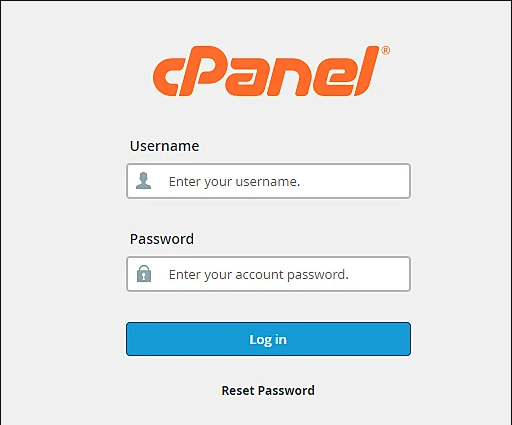
To begin, access your cPanel account by entering yourdomain.com/cpanel in the browser and logging in with your credentials.
Step 2: Navigate to the Email Forwarders Section
Once you’re logged in:
- Scroll down to the Email section.
- Click on the Forwarders icon.
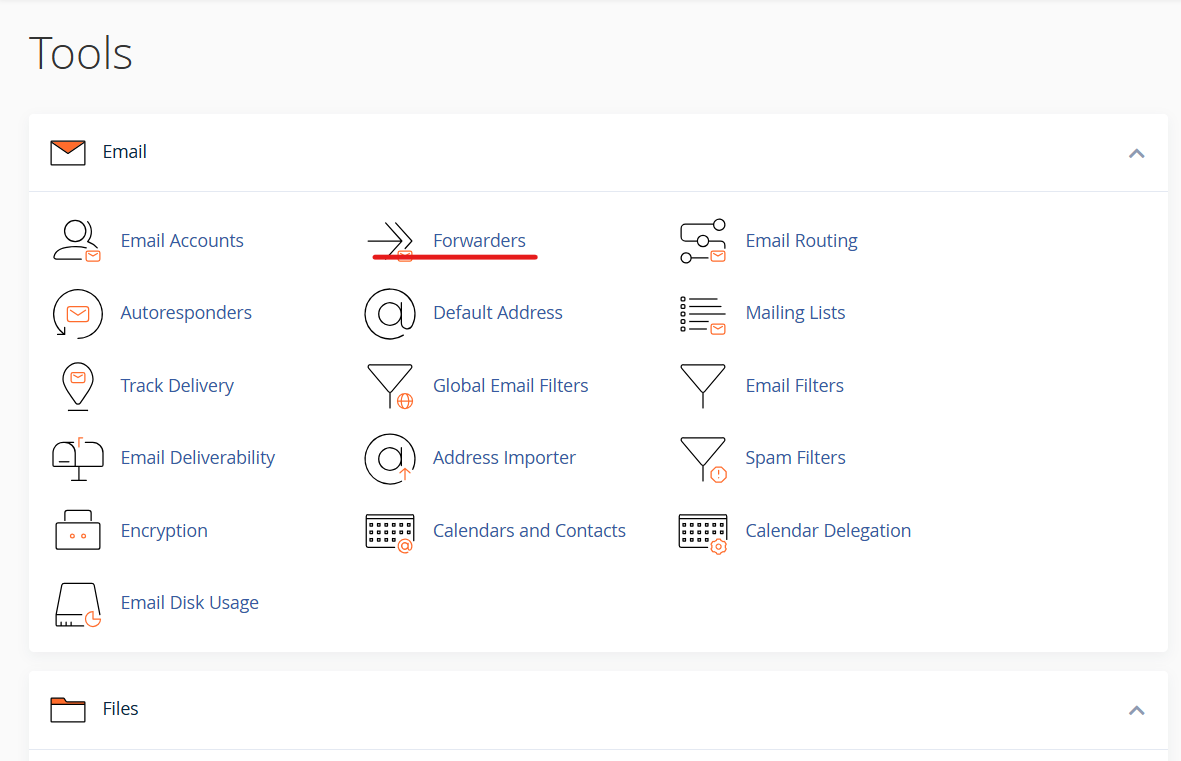
Step 3: Add a New Forwarder
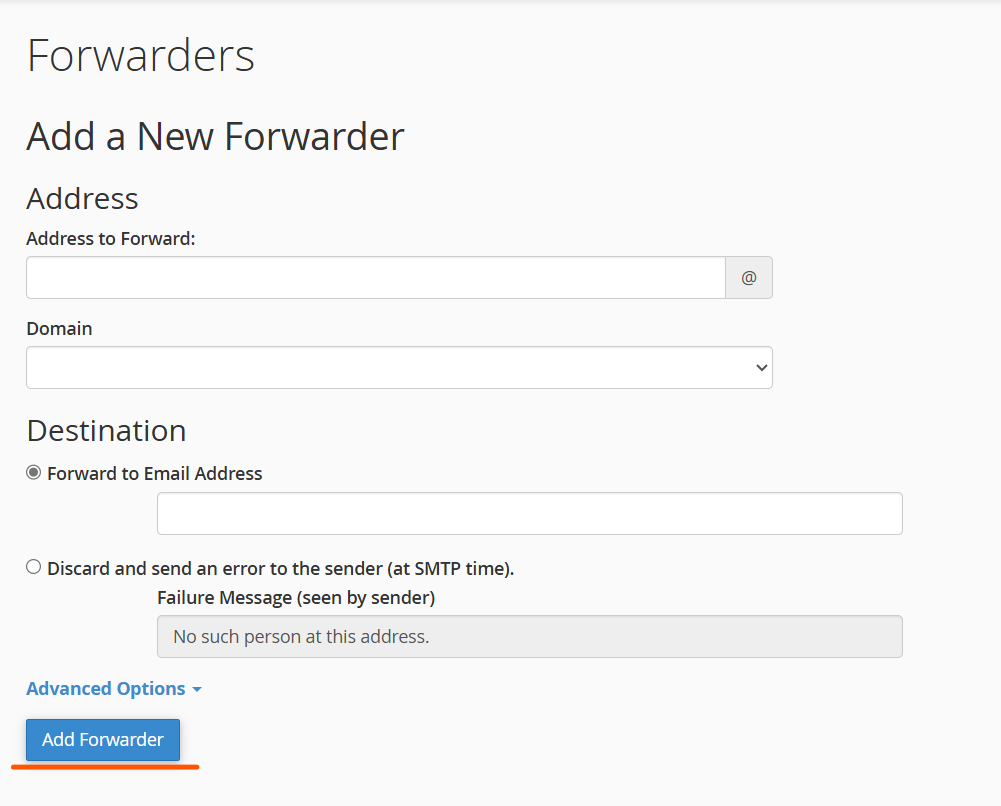
- Click on Add Forwarder to begin creating a new forwarder.Here’s what you’ll need to do:
- Address to Forward: Enter the email address you want to forward (e.g.,
support@yourdomain.com). - Destination: Specify the email address to which you’d like to forward emails (e.g.,
admin@yourdomain.comor an external email likeyouraddress@gmail.com).
- Address to Forward: Enter the email address you want to forward (e.g.,
- After entering the relevant information, click Add Forwarder.
Step 4: Verify Forwarder Setup
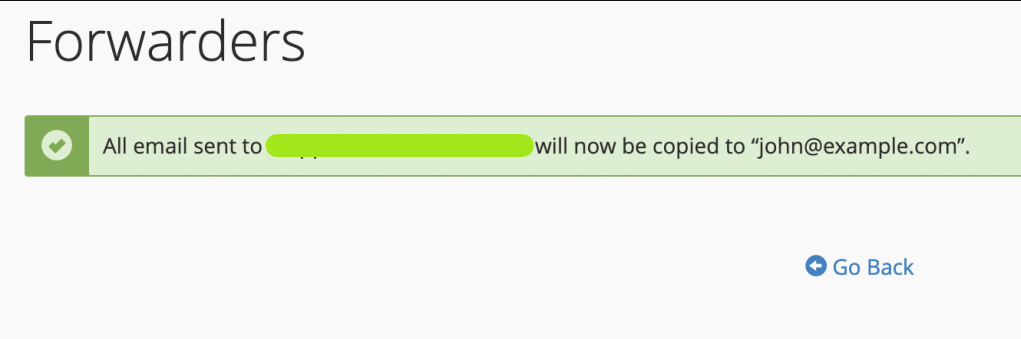
After successfully creating the forwarder, you should test it by sending a test email to the forwarded address and confirming it reaches the destination inbox.
Managing and Deleting Email Forwarders
To manage or remove an email forwarder:
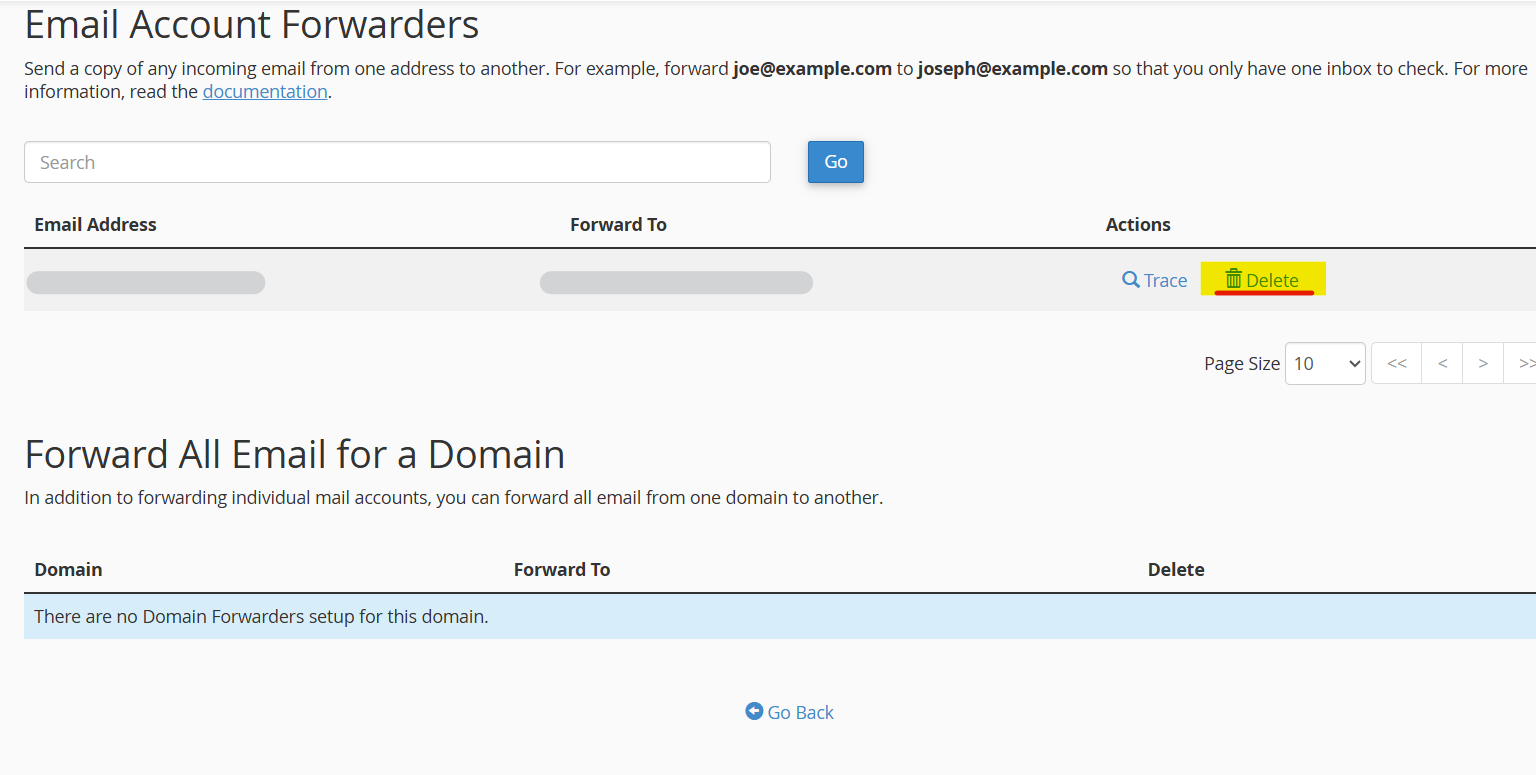
- Go back to the Forwarders section in cPanel.
- You will see a list of all current forwarders.
- To delete a forwarder, click Delete next to the forwarder you wish to remove.
This will stop emails from being forwarded but won’t delete the email account itself.
Common Use Cases for Email Forwarders
- Customer Support: Redirect emails from
support@yourdomain.comto different agents. - Departmental Communication: Forward all emails from
sales@yourdomain.comto the sales team. - Personal Email Management: Have your work emails forwarded to your personal email inbox for better management.
- Backup: Forward important emails to a backup address for archival purposes.
Troubleshooting Email Forwarding Issues
- Emails Not Forwarding: Check if the email forwarder is set up correctly in cPanel. Ensure that the destination email address is valid.
- Emails Going to Spam: Sometimes, forwarded emails may land in the spam folder of the destination email. Ensure proper SPF, DKIM, and DMARC records are set up for your domain to avoid this issue.
- Forwarding Loops: Avoid forwarding emails to an address that may eventually forward back to the original sender. This can create an endless loop.
- Email Overload: If too many emails are being forwarded, set up filters to manage forwarding more effectively.
Conclusion
Setting up an email forwarder in cPanel is a straightforward process that can help streamline communication and ensure important messages are never missed. Whether you’re managing multiple domains, forwarding emails for departments, or simply want to keep your inbox organized, cPanel’s email forwarder feature is a must-have tool.
By following the steps outlined in this guide, you can easily create and manage email forwarders. Don’t forget to regularly review your forwarder settings to ensure everything is running smoothly and adapt them as needed to meet your evolving communication needs.
cPanel offers a powerful way to simplify your communication flow, giving you more time to focus on growing your business.