

Effective email management is crucial for website owners and administrators, especially when handling a high volume of emails. One of the powerful tools in cPanel that can help you track the status of your emails is the Track Delivery feature. This tool enables you to monitor the delivery status of sent and received emails, helping you troubleshoot any issues with email delivery.
In this blog post, we will guide you through how to use the Track Delivery tool in cPanel, explain why it’s important, and provide tips for interpreting the information it provides.
What is the Track Delivery Tool in cPanel?
The Track Delivery tool is a feature within cPanel that allows users to monitor the delivery status of their emails. This tool provides detailed logs of each email transaction, including whether it was successfully delivered, failed, or deferred. This is especially useful for identifying issues such as incorrect email addresses, server configuration problems, or filtering by spam systems.
Why is Tracking Email Delivery Important?
Tracking email delivery is critical for ensuring that your messages are reaching their intended recipients. With Track Delivery, you can quickly identify problems like email bouncebacks or delays. Here’s why it’s important:
- Identifying Issues Early: Spotting undelivered emails or other issues can help prevent miscommunication.
- Troubleshooting Problems: Understanding why an email wasn’t delivered enables you to fix the underlying issue.
- Improving Deliverability: Consistently monitoring your email logs helps you adjust your server settings and email practices for better performance.
- Maintaining Reputation: Proper email monitoring helps avoid blacklists and spam filters, maintaining your domain’s reputation.
How to Access the Track Delivery Feature in cPanel
To use the Track Delivery tool in cPanel, follow these steps:
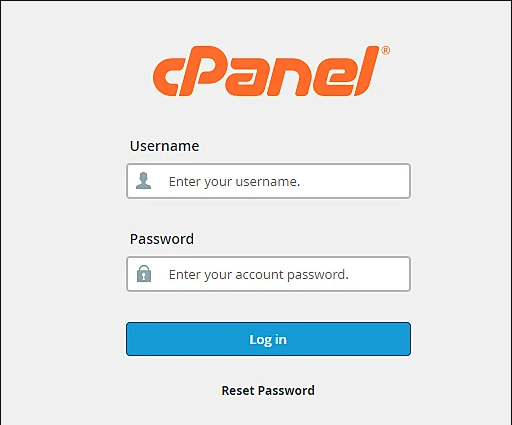
Log in to cPanel: Start by logging into your cPanel account.
Locate the Email Section: Scroll down to the Email section on the main dashboard.
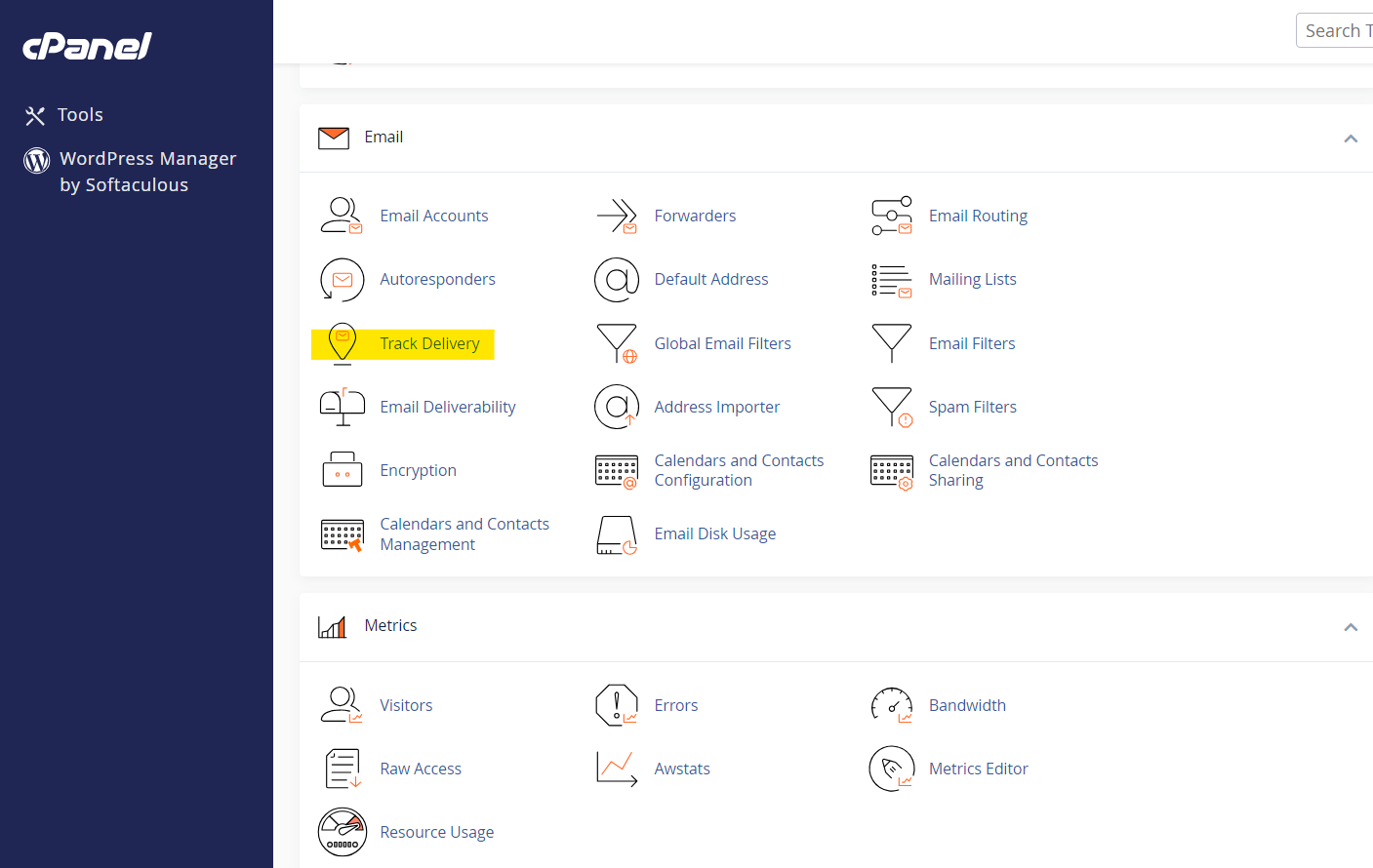
Click on Track Delivery: Find and click on the Track Delivery icon. This will take you to the email delivery logs.

Understanding the Track Delivery Interface
When you first open the Track Delivery tool, you’ll see a list of recent emails and their delivery statuses. The interface is straightforward:
- Email Sent To: Shows the recipient’s email address.
- Delivery Status: Indicates whether the email was successfully delivered, bounced, or deferred.
- Time: Displays the timestamp of when the email was processed.
- Actions: Allows you to see more detailed information about each email transaction, such as error messages or the server response.
How to Filter and Search Email Logs
If you’re dealing with a large number of emails, you can use the filtering and search features in the Track Delivery tool to find specific emails. Here’s how:
- Search Bar: Use the search bar at the top to filter emails by recipient address, sender address, or subject.
- Advanced Filters: Click on the Show All button to reveal advanced filtering options such as:
- Recipient: Filter by recipient email address.
- Sender: Filter by sender email address.
- Delivery Status: Filter by delivery status (e.g., success, failure, or deferred).
- Time Range: Specify a date range for when the email was sent.
Analyzing Email Delivery Statuses
Understanding the delivery status of each email is crucial for diagnosing issues. The Track Delivery tool will provide one of the following statuses for each email:

- Success: The email was delivered successfully to the recipient’s server.
- Deferred: The email was temporarily delayed but should be retried later.
- Failed: The email could not be delivered due to a permanent error, such as an incorrect address or server issue.
- In Progress: The email is in the process of being delivered.
Common Delivery Statuses and Their Meanings
Here are some of the most common delivery statuses you’ll encounter while using the Track Delivery tool, along with their meanings:
- Delivered: The email was sent successfully.
- Soft Bounce: A temporary issue (e.g., recipient’s inbox is full). The server will attempt to deliver the email again.
- Hard Bounce: A permanent failure, often caused by an invalid email address.
- Deferred: The email could not be delivered at the time but will be retried later.
- Blocked: The email was blocked by a spam filter or recipient server.
Best Practices for Managing Email Delivery
To optimize your email deliverability and reduce the chances of delivery issues, here are some best practices you can follow:
- Ensure SPF, DKIM, and DMARC Records are Properly Set: These DNS records authenticate your emails and improve deliverability.
- Monitor Email Bouncebacks: Pay attention to emails that bounce back and investigate the reasons for failure.
- Avoid Spammy Content: Steer clear of phrases or content that may trigger spam filters.
- Regularly Check Delivery Logs: Routinely use the Track Delivery tool to monitor your email’s performance.
Conclusion
The Track Delivery tool in cPanel is a powerful resource for monitoring and managing email deliverability. By keeping an eye on the status of your sent emails, you can quickly diagnose and resolve any issues that arise, ensuring that your communication reaches its intended recipients. Make sure to regularly check your email logs, use the filtering options to search for specific emails, and follow best practices to maintain optimal email performance.
Whether you’re managing a small business or running a large-scale operation, cPanel’s Track Delivery tool is an essential component of maintaining effective communication via email.