
Hello all,
Today we will going to see how to create a FTP account using cPanel.
An FTP account is used to upload and managing files on your website. There is a default FTP account has been created when you sign up a hosting account or create a cPanel account from your reseller control panel (WHM).
In case you are the owner of your server and you did not like to share your Panle login to your developer simply you can create the FTP account with limited permissions and share the credentials to your developer to upload the contents in the specific directory. For each additional FTP account created, you can also give each user different levels of access by assigning the user to a specific directory.
To create an FTP account:
- Login to your cPanel
- In the files section, choose FTP Accounts
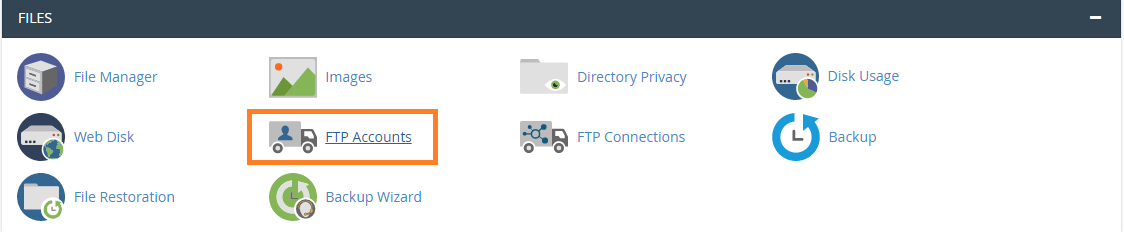
3. In the Login field, type the name of the FTP user. A full FTP user name will be always be formatted as example@domainname.com. you cannot create FTP account without your domain name in it.
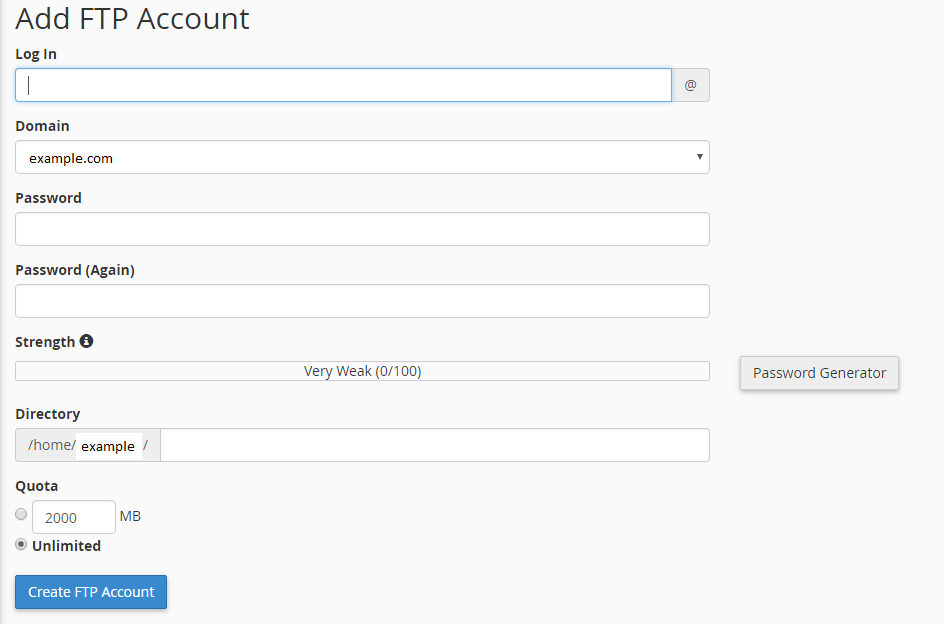
4. In the Password fields, enter a password which will be used to authenticate this FTP account.
5. Set a quota for the FTP account. Quota is the maximum amount of bandwidth the FTP user may use. If you leave the quota as unlimited, the FTP user will have the ability to use the total amount of bandwidth for the cPanel account.
6. In the Directory field, cPanel will auto-populate an assumed directory based on the FTP username, but that is normally incorrect. So, we recommend you to specify the directory path for the user.
7. Click Create button to create the new FTP account.