

Setting the correct timezones on your server is crucial for several reasons. It ensures accurate logging, proper scheduling of cron jobs, and consistency in time-sensitive applications. AlmaLinux, a free and open-source Linux distribution that is binary-compatible with Red Hat Enterprise Linux (RHEL), offers straightforward methods to set and manage timezones. In this guide, we’ll walk through the steps to set the timezone on an AlmaLinux system, covering both graphical and command-line methods.

Understanding Timezones
Timezones are regions of the Earth that have the same standard time. They are essential for coordinating events, scheduling tasks, and maintaining logs in a globally synchronized manner. Each timezone is defined relative to Coordinated Universal Time (UTC), with offsets indicating the number of hours ahead or behind UTC.
Prerequisites
Before setting the timezone on AlmaLinux, ensure you have the following:
- An AlmaLinux system (either server or desktop).
- Access to a terminal or command-line interface.
- Root or sudo privileges to make system-wide changes.
Checking the Current Timezone
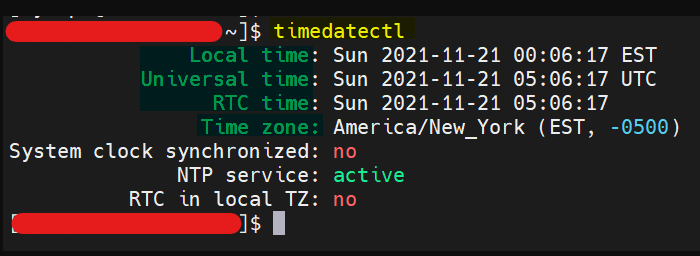
To check the current timezone, open a terminal and execute the following command:
timedatectl
This command provides detailed information about the system’s time settings, including the current timezone, local time, UTC time, and the status of network time synchronization.
Setting the Timezone Using the Command Line
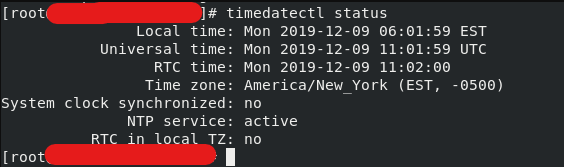
Using timedatectl
The timedatectl command is a powerful tool for managing time settings on Linux systems. To list all available timezones, use:
timedatectl list-timezones
Scroll through the list or use the grep command to find your desired timezone. For example, to find timezones related to New York:
timedatectl list-timezones | grep Kolkata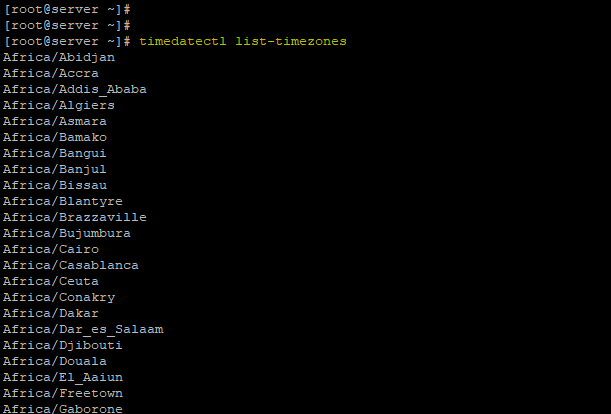
Once you’ve identified the correct timezone, set it using the following command:
sudo timedatectl set-timezone America/New_York
Updating the /etc/localtime File
An alternative method to set the timezone is by creating a symbolic link from /etc/localtime to the appropriate timezone file in /usr/share/zoneinfo/. Here’s how to do it:
First, back up the current /etc/localtime file:
sudo cp /etc/localtime /etc/localtime.backup
Then, create the symbolic link:
sudo ln -sf /usr/share/zoneinfo/America/New_York /etc/localtime
Setting the Timezone Using the Graphical Interface
For those using AlmaLinux with a graphical desktop environment, you can set the timezone through the system settings. Here’s a step-by-step guide:
- Open System Settings: Navigate to the system settings from the application menu.
- Find Date & Time Settings: Locate the Date & Time settings, usually found under the “Region & Language” or similar section.
- Select Timezone: In the Date & Time settings, you will see an option to set the timezone. Click on it and choose your desired timezone from the map or the list.
- Apply Changes: After selecting the timezone, ensure you apply or save the changes.
Verifying the New Timezone
After setting the timezone, it’s important to verify the changes to ensure they have been applied correctly. Use the following command:
timedatectl
Check the “Time zone” field to confirm it reflects your new setting.
Common Issues and Troubleshooting
Timezone Not Changing
If the timezone doesn’t change after using timedatectl, ensure there are no errors in the command. Additionally, check if any scripts or applications are overriding the timezone settings.
Incorrect Time Display
If the time is incorrect even after setting the timezone, ensure that your system clock is synchronized. Use the following commands to enable and start the NTP service:
sudo timedatectl set-ntp true

sudo systemctl restart systemd-timesyncd
Permission Denied Errors
Ensure you have the necessary root or sudo privileges to change the system timezone. Prefix your commands with sudo to avoid permission errors.
Conclusion
Setting the correct timezone on your AlmaLinux system is a straightforward process, whether using the command line or graphical interface. Accurate time settings are crucial for system operations, logging, and scheduled tasks. By following this guide, you can ensure your system’s timezone is correctly configured, leading to more reliable and synchronized operations.