
The “ERR_CONNECTION_RESET” error is a common issue faced by internet users. It occurs when the connection between your browser and the server you are trying to access is abruptly terminated. This can be frustrating, especially if you rely on a stable internet connection for work or leisure. In this blog post, we will explore various methods to fix this error and get you back online.
Table of Contents
ToggleUnderstanding the “ERR_CONNECTION_RESET” Error

Before diving into the solutions, it’s important to understand what causes this error. The “ERR_CONNECTION_RESET” error typically indicates that the connection was interrupted while loading a webpage. The reasons for this can be numerous, including:
- Network Issues: Problems with your internet connection or the server’s network.
- Browser Issues: Corrupted browser cache or cookies.
- Firewall and Antivirus Settings: Overly aggressive security settings.
- Proxy Settings: Incorrect proxy server configuration.
- VPN Issues: Conflicts caused by VPN software.
- Router Settings: Incorrect or outdated router settings.
Understanding the root cause of the error can help in applying the right solution. Let’s explore each potential cause and the corresponding fixes in detail.
Fix 1: Check Your Internet Connection
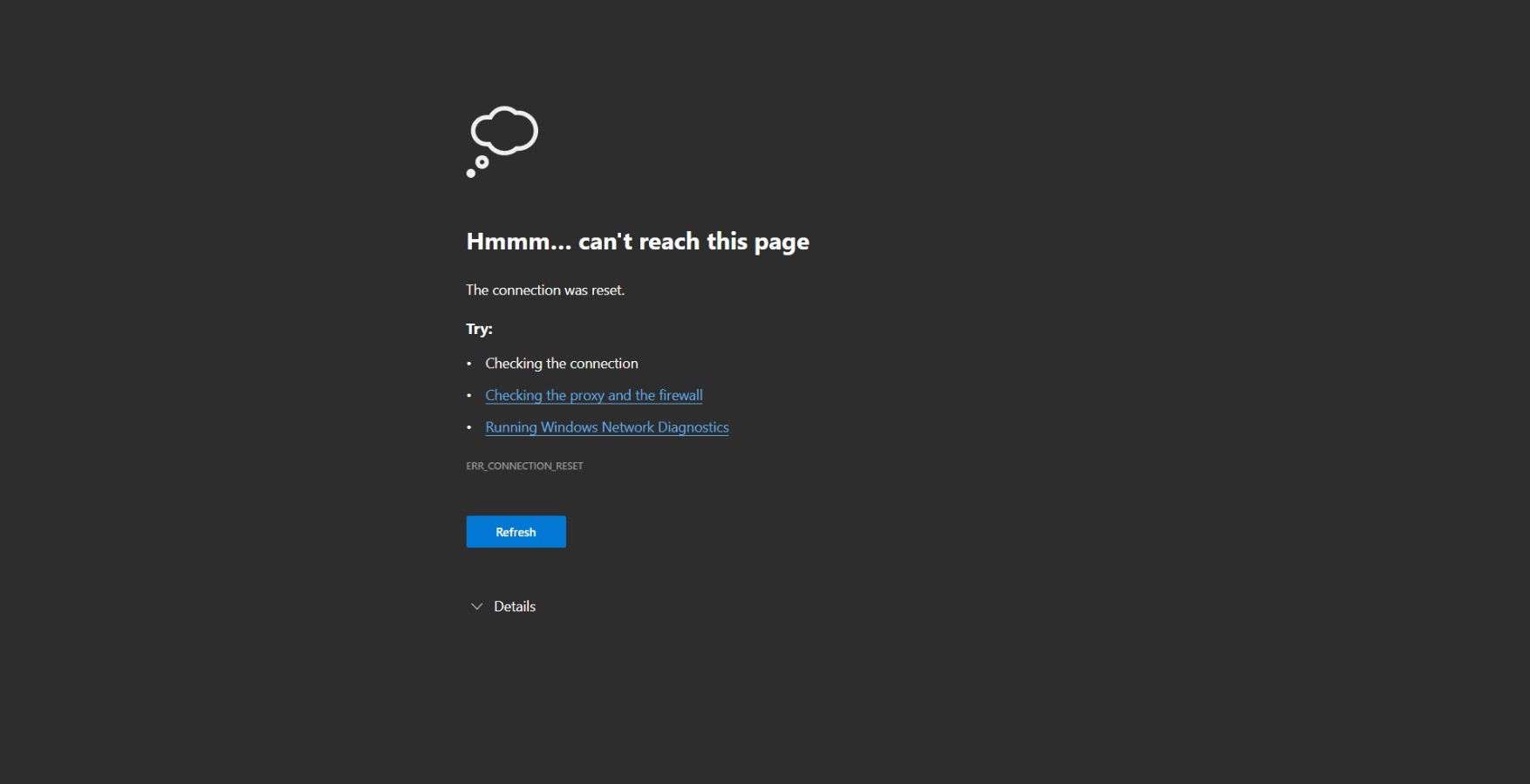
The first and most basic step is to ensure that your internet connection is stable. Here’s what you can do to avoid the “ERR_CONNECTION_RESET” error:
- Restart Your Router: Unplug your router, wait for about 30 seconds, and then plug it back in. This can resolve many temporary network issues.
- Check Cables: Ensure that all the cables are securely connected and there are no loose connections.
- Try a Different Network: If possible, connect to a different network to see if the error persists. This can help determine if the issue is with your network or the website.
Fix 2: Clear Browser Cache and Cookies
Browser cache and cookies can sometimes become corrupted, leading to connection errors. Clearing them can often resolve the “ERR_CONNECTION_RESET” error.
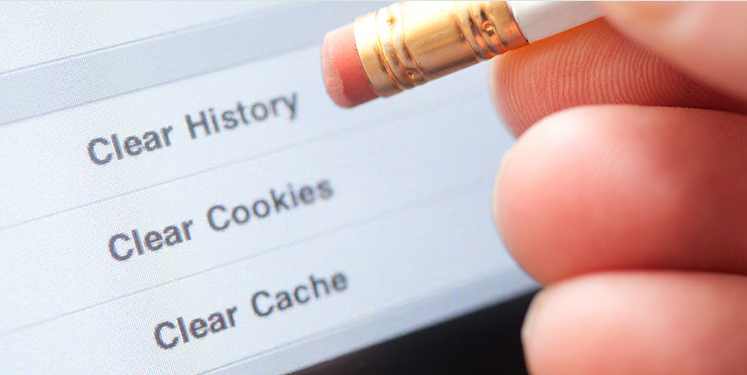
Steps to Clear Cache and Cookies in Chrome:
- Open Chrome and click on the three dots in the upper right corner.
- Go to
More tools>Clear browsing data. - Choose a time range (e.g., last 24 hours or all time) and make sure to check
Cookies and other site dataandCached images and files. - Click
Clear data.
Steps to Clear Cache and Cookies in Firefox:
- Open Firefox and click on the three lines in the upper right corner.
- Go to
Options>Privacy & Security. - In the
Cookies and Site Datasection, clickClear Data. - Check both
Cookies and Site DataandCached Web Content, then clickClear.
Fix 3: Disable Firewall and Antivirus Temporarily
Firewalls and antivirus programs are designed to protect your system, but they can sometimes interfere with your internet connection. Temporarily disabling them can help identify if they are causing the “ERR_CONNECTION_RESET” error issue.
Steps to Disable Windows Firewall:
- Open the
Control Paneland go toSystem and Security. - Click on
Windows Defender Firewall. - Click
Turn Windows Defender Firewall on or off. - Select
Turn off Windows Defender Firewall(both private and public).
Steps to Disable Antivirus:
The steps to disable antivirus software vary depending on the program you are using. Generally, you can right-click on the antivirus icon in the system tray and select Disable or Turn off.
Note: Remember to re-enable your firewall and antivirus after testing, as keeping them disabled can leave your system vulnerable.
Fix 4: Check Proxy Settings

Incorrect proxy settings can cause connection issues. Here’s how to check and disable proxy settings if necessary.
Steps to Check Proxy Settings in Windows:
- Open the
Control Paneland go toNetwork and Internet. - Click on
Internet Options. - Go to the
Connectionstab and clickLAN settings. - Uncheck
Use a proxy server for your LANand ensureAutomatically detect settingsis checked. - Click
OKand restart your computer.
Steps to Check Proxy Settings in Mac:
- Open
System Preferencesand go toNetwork. - Select your network connection and click
Advanced. - Go to the
Proxiestab. - Uncheck any proxy settings and click
OK.
Fix 5: Reset TCP/IP and DNS Settings
Sometimes, issues with TCP/IP and DNS settings can lead to the “ERR_CONNECTION_RESET” error. Resetting these settings can help resolve the problem.
Steps to Reset TCP/IP Settings:
- Open Command Prompt as an administrator. You can do this by searching for
cmdin the Start menu, right-clicking on Command Prompt, and selectingRun as administrator. - Type the following commands, pressing Enter after each one:
netsh int ip reset

netsh winsock reset
Steps to Reset DNS Settings:
- Open Command Prompt as an administrator.
- Type the following command and press Enter:
ipconfig /flushdns
Restart your computer and check if the issue is resolved.
Fix 6: Disable VPN Software
If you are using a VPN, it could be causing conflicts that lead to the “ERR_CONNECTION_RESET” error. Try disabling your VPN to see if it resolves the issue.
Steps to Disable VPN in Windows:
- Open
Settingsand go toNetwork & Internet. - Click on
VPN. - Select your VPN connection and click
Disconnect.
Steps to Disable VPN in Mac:
- Open
System Preferencesand go toNetwork. - Select your VPN connection and click
Disconnect.
Fix 7: Update Network Drivers
Outdated or corrupted network drivers can cause connection issues. Updating your network drivers can help resolve the “ERR_CONNECTION_RESET” error.
Steps to Update Network Drivers in Windows:
- Right-click on the Start menu and select
Device Manager. - Expand the
Network adapterssection. - Right-click on your network adapter and select
Update driver. - Choose
Search automatically for updated driver software.
Steps to Update Network Drivers in Mac:
- Open
System Preferencesand go toSoftware Update. - If an update is available, click
Update Now.
Fix 8: Check Router Settings
Incorrect router settings can also lead to connection issues. Resetting your router to its default settings can help to avoid the “ERR_CONNECTION_RESET” error .
Steps to Reset Router Settings:
- Locate the reset button on your router. It is usually a small button that can be pressed with a paperclip or pin.
- Press and hold the reset button for about 10 seconds.
- Release the button and wait for the router to restart.
Note: Resetting your router will erase all custom settings, including Wi-Fi passwords and network configurations. Make sure to have this information handy before resetting.
Fix 9: Contact Your ISP
If none of the above solutions work, the issue might be with your Internet Service Provider (ISP) to avoid the “ERR_CONNECTION_RESET” error. Contacting your ISP can help determine if there are any network issues or outages in your area.
Conclusion
The “ERR_CONNECTION_RESET” error can be caused by various factors, ranging from network issues to incorrect settings. By following the steps outlined in this guide, you should be able to identify and resolve the issue. Remember to always restart your computer and router after making changes to ensure they take effect. If the problem persists, seeking assistance from your ISP or a professional technician may be necessary. Happy browsing